Please take a 5-minute online survey to give us your feedback.
Search our Online Knowledge Base for answers to a comprehensive set of questions. The Knowledge Base lets you search by category, keywords, or phrases. You can even subscribe to articles to receive email notifications when they are updated.
Your computer needs to be properly configured to run your MathXL course. Depending on your course, you will either need to run the Installation Wizard or the Browser Check to install the components you need to view exercises and multimedia content in your course.
It's best to run the Browser Check or Installation Wizard from inside your MathXL course. When you log into your course, you will see a Browser Check or Installation Wizard link on the Announcements page.
You can also run the Browser Check or Installation Wizard from this Support site.
Note: Before running the Browser Check or Installation Wizard, you should review the information below. You must have administrator rights to install software on your computer. You will also need to confirm pop-up blocker and cookie settings. If you are unfamiliar with these topics, the information below will give you guidance.
Administrator rights allow you to install software on a computer. Before running the Browser Check or Installation Wizard, make sure you have full administrator rights on your machine. If you are on a lab computer or a computer at an institution or business, you probably do not have administrator rights and you cannot install courses components from the Browser Check or Installation Wizard. In this case, you need to contact your lab administrator, network administrator, or the owner of the computer so that person can run the Browser Check or Installation Wizard to install plug-ins and players for you.
To check for admin rights on a Windows system:
To check for admin rights on a Macintosh system:
If you try to install components using the Browser Check or Installation Wizard without administrator rights, you may see a message saying that you are missing a key component. If you click the link to install the component, nothing happens.
Pop-up blockers or ad-blockers may prevent you from installing components and from using your course. You should configure these programs to allow pop-ups from mathxl.com before running the Browser Check or Installation Wizard or trying to use any part of your course.
Commonly used pop-up blockers:
Most popular pop-up blockers let you allow pop-ups from specific locations. For example, if you are using the Google toolbar pop-up blocker, you can click the Popup Blocker button on the toolbar when you are using the Installation Wizard. The button text will change to read “Allow site popups,” indicating that the Popup Blocker is disabled for the MyMathLab site. For specific instructions, please refer to the online help for your pop-up blocker.
If pop-ups are still blocked after you configure your pop-up software, you should temporarily disable your pop-up blockers. You can temporarily disable many pop-up blockers by clicking the program's icon in either the Windows System Tray or in the browser. You can re-enable the software when you are not using your course.
In extreme cases, you may need to uninstall a pop-up blocker completely. If the pop-up blocker is not part of your browser, you probably can remove it using the Add/Remove Programs in the Windows Control Panel.
If you still need help, contact Product Support. (Contact information is at the top of this page.)
To use MathXL, your browser must accept cookies, which are used to keep track of who you are when you move from one web page to another.
To enable cookies for Internet Explorer:
To enable cookies for Firefox:
To enable cookies for Safari:
If you still need help, contact Product Support. (Contact information is at the top of this page.)
If you are having trouble playing the videos in your MyMathLab course, you may need to adjust your QuickTime settings. Click the links below for instructions:
The Installation Wizard requires you to download the MathXL Player, which uses an "ActiveX control" to display homework, tests, and practice exercises.To install the MathXL Player, ActiveX must be enabled in your Internet browser. The Installation Wizard tells you whether you need to enable ActiveX.
If your browser’s Internet Options are set to block ActiveX, you will see a warning message alerting you that ActiveX is disabled. For example, if you have Windows XP Service Pack 2, a message like this appears along the top of the Installation Wizard screen:

For Windows XP and Windows 2000 XP1 users, a message like this appears:

If you get any type of error message telling you that ActiveX is disabled, follow these instructions to enable ActiveX:
Now you can return to the Installation Wizard and install the MathXL Player.
If you still need help, contact Product Support. (Contact information is at the top of this page)
If you are using the Browser Check or Installation Wizard on a system running Windows XP Service Pack 2, you may see a yellow/beige information bar located just below the title bar that looks like this:
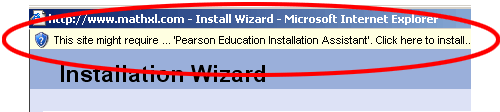
Click this information bar and accept the installation of the required component. If you do not, the component required for your course cannot be installed.
If you still need help, contact Product Support. (Contact information is at the top of this page)
See the Getting Started section for instructions.
The best way for you to begin learning about the features available in the MathXL Exercise Builder is to access your MathXL course and click the Help link. Then click the Online Instructor Help link to open the Help system. The Help system provides detailed information about how to use this new feature.
If you need additional guidance, you can sign up for a training session with our MyMathLab/MathXL trainers. You can learn more about available training sessions in the Tours & Training section.
In most courses, you and your students can use recent versions of Internet Explorer, Firefox, or Safari to work in your course. A few older courses, however, are only available using Internet Explorer. If your course uses the Installation Wizard, you must use Internet Explorer 6 or 7 to work in your course. If your course offers the Browser Check, you can use any of the three standard browsers.
Some Internet providers, such as AOL, offer their own proprietary browsers, which are not compatible with MathXL. To work in your course, you must minimize the proprietary browser and open a standard browser supported for your course.


Helpful information on using MathXL can also be found in the following sections:
Online help is also available from within your MathXL course.